WhatsApp has been on a relentless upgrade spree in 2026, rolling out features that are quietly transforming how billions of people communicate. Yet despite these powerful additions landing directly on your phone, most users are still tapping away without realizing what they’re missing. From AI-powered tools to smarter group controls and cross-device syncing, WhatsApp’s latest updates are genuinely game-changing. Whether you’re a casual user or rely on the app for business, these 8 hidden WhatsApp new features 2026 are worth your attention starting today.
1. WhatsApp New Features 2026 : AI Message Summaries (NEW)
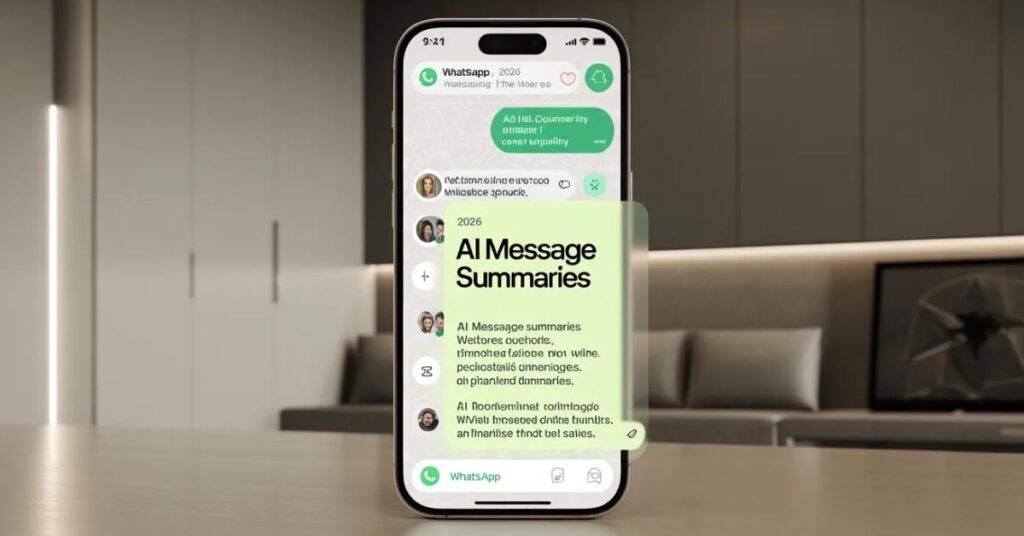
What it does: Thanks to Meta AI’s deeper integration into WhatsApp in 2026, users can now get automatic summaries of long group chats they’ve missed. Instead of scrolling through 300 messages after a busy day, a single tap generates a concise overview of what was discussed.
How to enable: Open any group chat → tap the Meta AI icon at the top right → select “Summarize Chat.” The feature is rolling out globally and should appear in your updated app.
Best use cases: Work group chats, family planning groups, community channels with high message volume. It’s also a lifesaver for catching up after travelling across time zones.
Privacy considerations: Message summaries are processed on-device where possible, meaning WhatsApp says it does not read or store your conversation content on its servers for this purpose. However, users in regions with Meta AI restrictions may not yet see this feature.
2. WhatsApp New Features 2026: Enhanced Voice Message Transcription
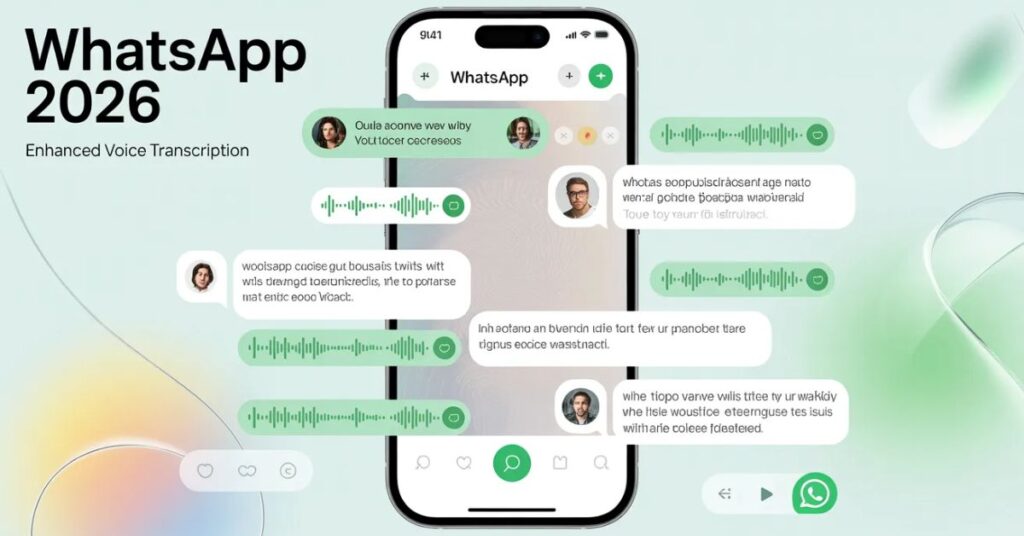
One of the most-loved WhatsApp hidden features just got a serious upgrade. Voice message transcription which converts audio messages to text now supports more languages and delivers noticeably better accuracy in 2026.
Languages supported: WhatsApp has expanded transcription to include dozens of languages including English, Spanish, Portuguese, Hindi, Arabic, French, German, and Chinese (both Traditional and Simplified).
Accuracy improvements: The on-device transcription model has been rebuilt, reducing errors in accented speech and noisy environments significantly compared to the 2024 version.
Step-by-step activation:
- Open WhatsApp → tap the three dots (Android) or Settings (iOS)
- Go to Chats → Voice Message Transcripts
- Toggle it On and select your preferred language
- Long-press any voice message → tap Transcribe
Since all transcription happens on your device, no third party including WhatsApp can access your messages.
3. Custom Chat Themes Per Contact
WhatsApp finally went beyond its signature green. In 2026, users can now assign individual chat themes to specific contacts or groups, making conversations visually distinct and easier to navigate at a glance.
How to personalize: Open a chat → tap the contact or group name at the top → scroll to Chat Theme → choose from the available options.
Available themes: WhatsApp currently offers over a dozen themes including classic green, midnight blue, warm rose, forest dark, ocean breeze, and more. Premium subscribers get access to additional exclusive theme packs.
Why it matters: Power users managing dozens of chats will love the instant visual differentiation. No more confusing your team’s work group with your family chat at a glance.
4. Improved Group Admin Controls
WhatsApp rolled out major upgrades to group admin tools in early 2026, giving admins far more granular control over who can do what inside a group.
New permissions introduced:
- Restrict who can add new members (admins only)
- Limit message sending to admins during announcements
- Approve or deny new join requests before members enter
- Member Tags a brand new 2026 feature that lets each member set a custom role tag (e.g., “Coach,” “Anna’s Mom,” “Team Lead”) visible only within that group
How to use: Go to Group Info → Group Settings → Edit Group Permissions. Member Tags can be set by tapping your own name in the participants list.
Preventing spam: The new join approval system is particularly powerful for large communities and business groups, effectively eliminating unwanted additions and spam accounts from infiltrating groups.
5. Edit Messages Extended to 24 Hours
Previously, WhatsApp gave users a slim 15-minute window to edit a sent message. In 2026, that window has been dramatically extended to 24 hours a change that makes a massive practical difference.
Previous vs. new time limit: 15 minutes → 24 hours. That means you can fix a typo, correct misinformation, or update a detail you forgot well after the conversation moved on.
How editing works: Long-press any message you sent → tap Edit → make your changes → hit the checkmark. The message will display an “Edited” label so recipients know it was changed.
What gets notified: Recipients are not sent a notification when you edit a message, but the “Edited” tag is visible to everyone in the chat. WhatsApp does not currently allow viewing the edit history, so only the final version is shown.
6. Screen Share with Audio in Calls
WhatsApp’s screen sharing feature already available for some time has been upgraded in 2026 to include audio sharing, making it far more useful for presentations, tutorials, and remote collaboration.
Business use cases: Share a product demo with a client, walk a colleague through a software issue, or present a slide deck during a WhatsApp video call all without switching to Zoom or Teams.
How to activate:
- Start a WhatsApp video call
- Tap the Screen Share icon (square with upward arrow)
- A new toggle for “Include Audio” now appears enable it before confirming
iOS vs. Android differences: On Android, audio sharing via screen share works natively. On iOS, due to Apple’s system restrictions, audio sharing may be limited depending on your iPhone model and iOS version. iOS 26 users report full audio support on newer devices.
7. Message Draft Auto-Save Across Devices
This WhatsApp trick has been quietly requested for years: message drafts now auto-save and sync across all your linked devices. If you start typing a reply on your phone and switch to WhatsApp Web or the desktop app, your draft is waiting for you.
Syncing explained: Draft sync is part of WhatsApp’s multi-device architecture. Your drafts are encrypted and stored temporarily in WhatsApp’s secure infrastructure, then synced to your linked devices in real time.
Desktop + mobile integration: Works seamlessly between WhatsApp for Android/iOS and WhatsApp Web, Mac, and Windows desktop apps. Drafts sync within seconds of switching devices.
Privacy notes: Drafts are end-to-end encrypted in transit between your devices, consistent with WhatsApp’s overall privacy model. Unlinked devices will not have access to your drafts.
8. Disappearing Messages Default Settings
Disappearing messages got a major organizational upgrade in 2026. WhatsApp now allows users to set a global default for disappearing messages across all new chats a feature especially valuable for privacy-conscious users and businesses.
Organization-wide settings: WhatsApp Business accounts can now enforce disappearing message defaults across all customer conversations, reducing data retention risks and keeping inboxes clean automatically.
Timer options: You can choose from 24 hours, 7 days, or 90 days as your default timer. Once set, all new chats will automatically start with disappearing messages enabled at your chosen interval.
How to set it: Go to Settings → Privacy → Default Message Timer → choose your preferred duration.
Security benefits: For sensitive conversations whether legal, financial, or personal this ensures messages don’t sit around indefinitely. It’s particularly useful for journalists, healthcare workers, and anyone who values digital hygiene.
How to Update WhatsApp to Get These Features
Not seeing some of these features yet? Here’s how to make sure you’re running the latest version:
On Android (Play Store):
- Open Google Play Store → tap your profile icon
- Go to Manage Apps & Device → Updates Available
- Find WhatsApp and tap Update
On iPhone (App Store):
- Open App Store → tap your profile icon at the top
- Scroll to Available Updates
- Tap Update next to WhatsApp
Join the Beta Program: Want features before everyone else? On Android, visit the WhatsApp page on Google Play and scroll down to join the beta tester program. On iOS, use the TestFlight app to access WhatsApp’s beta builds.
Troubleshooting: If an update is available but features still don’t appear, try force-closing the app and reopening it. Some features roll out in stages, so certain regions or accounts may receive them slightly later than others. Clearing the app cache on Android can also help trigger feature unlocks.
Frequently Asked Questions (FAQs)
What are the new features of WhatsApp New Year 2026?
WhatsApp kicked off 2026 with a strong lineup of updates designed to improve communication, privacy, and productivity. The standout additions include AI-powered message summaries via Meta AI, a 24-hour message editing window (up from just 15 minutes), cross-device message draft syncing, enhanced voice message transcription in dozens of languages, custom chat themes per contact, screen sharing with audio during video calls, improved group admin controls with member tags, and global default settings for disappearing messages. Additionally, WhatsApp introduced Strict Account Settings in late January 2026 a new security layer that automatically blocks media from unknown senders, silences calls from strangers, and locks your profile to contacts only. To get all these features, simply update WhatsApp to the latest version from the App Store or Google Play Store.
What is the new policy of WhatsApp 2026?
WhatsApp made two major policy changes in 2026 that every user should know about:
1. AI Chatbot Ban (Effective January 15, 2026): Meta updated WhatsApp Business API terms to ban third-party general-purpose AI chatbots such as ChatGPT on WhatsApp and Perplexity’s bot from operating on the platform. Starting January 15, 2026, these functionalities were blocked for external AI model providers, leaving Meta AI as the sole assistant on the platform. Businesses can still use AI for specific purposes like customer support, order tracking, FAQs, and bookings just not as a general open-ended assistant. Note: The EU’s competition regulator has challenged this ban and is pursuing interim measures to restore third-party AI access while an antitrust investigation continues.
2. EU Digital Services Act (DSA) Designation: WhatsApp was officially classified as a “Very Large Online Platform” (VLOP) under the EU’s Digital Services Act in January 2026, which means it must now actively work to prevent disinformation, protect user mental health, and meet stricter content moderation obligations on WhatsApp Channels. Private messages remain unaffected.
3. New Business Pricing: Meta also introduced per-message pricing for the WhatsApp Business API effective January 1, 2026, replacing the previous conversation-based billing system.
Can I turn off Meta AI in WhatsApp?
This is one of the most-searched WhatsApp questions in 2026 and the honest answer is: not completely. There’s no off switch for Meta AI on WhatsApp. While you can delete chats or submit opt-out requests, the assistant remains embedded in search bars and messaging screens.
However, you can minimize its presence using these steps:
Mute the Meta AI chat:
- Open WhatsApp → tap the blue/purple Meta AI circle (bottom right)
- Tap “Meta AI” at the top of the screen
- Scroll down → tap Mute → select Always
Block it per chat (Advanced Chat Privacy):
- Open any individual or group chat
- Tap the contact/group name at the top
- Scroll down → tap Advanced Chat Privacy → toggle On
- This prevents @MetaAI from being used inside that specific chat
EU users have additional rights: If you’re in the European Union or United Kingdom, you can submit a formal objection to Meta using your data for AI model training via the Privacy Center on Facebook or through Meta’s official data rights portal. US users currently have fewer opt-out options.
The bottom line: you can silence and minimize Meta AI, but you cannot remove it from the app entirely as of February 2026.
How can I know if someone is monitoring my WhatsApp?
While WhatsApp uses end-to-end encryption to protect your messages, monitoring can still occur through other means. Here are the key warning signs and checks:
Signs someone may be monitoring your WhatsApp:
- Your phone battery drains much faster than usual without explanation
- You notice unusual data usage spikes even when you haven’t been actively using the app
- WhatsApp shows active “online” status or read receipts at times you weren’t using it
- You find unfamiliar linked devices under Settings → Linked Devices
How to check for unauthorized linked devices:
- Open WhatsApp → tap the three-dot menu (Android) or Settings (iOS)
- Go to Linked Devices
- Review the list — if you see any device you don’t recognize, tap it and select Log Out
Protect yourself with new 2026 security tools: WhatsApp’s new Strict Account Settings (Settings → Privacy → Advanced → Strict Account Settings) automatically enables two-step verification, restricts your profile to contacts only, and blocks unknown media — making it significantly harder for anyone to gain unauthorized access to your account.
If you suspect spyware has been installed on your physical device, consider running a reputable security scan and consulting a cybersecurity professional, as this is beyond WhatsApp’s ability to detect or prevent.
Can someone access my WhatsApp without my phone?
Yes, in a few specific scenarios but each has a clear countermeasure:
1. Linked Devices (WhatsApp Web/Desktop): Someone who has had brief physical access to your phone could link their computer or browser to your account without your knowledge. Check and remove unauthorized sessions under Settings → Linked Devices immediately.
2. SIM Swap Attacks: A determined attacker could contact your mobile carrier and fraudulently transfer your phone number to a new SIM, then re-register WhatsApp on a new device. Protect against this by enabling Two-Step Verification (Settings → Account → Two-Step Verification), which adds a PIN required during registration.
3. Spyware / Stalkerware: If malicious software has been installed on your device often requiring brief physical access it could forward messages or screenshots. Signs include unusual battery drain, overheating, and odd background activity.
4. Cloud Backup Compromise: If your WhatsApp backup stored on Google Drive or iCloud is accessed through a compromised Google/Apple account, your message history could be read. Use strong, unique passwords and two-factor authentication on those accounts.
WhatsApp’s own end-to-end encryption is robust, meaning Meta itself cannot read your messages. The vulnerabilities lie at the device and account level, not the encryption layer.
How do I know if my phone number is tracked?
Tracking a phone number is different from monitoring WhatsApp specifically, but here are practical ways to assess your risk:
Signs your number or phone may be tracked:
- You receive unexpected verification codes via SMS a possible sign of a SIM swap attempt
- Your phone intermittently loses mobile signal in areas with normal coverage
- Unknown apps appear in your installed apps list or your battery/data usage shows unexplained spikes
- Calls drop or you hear unusual background noise during calls (though this is often network-related, not surveillance)
Steps to check and protect yourself:
- Check for unknown apps: Go to your phone’s Settings → Apps → look for anything unfamiliar, especially apps with system-level permissions (location, microphone, contacts)
- Review app permissions: Settings → Privacy → Permission Manager — check which apps have access to your location, microphone, and camera
- Enable WhatsApp’s Strict Account Settings: As of January 2026, this new feature (Settings → Privacy → Advanced → Strict Account Settings) locks down your profile, blocks unknown messages, and triggers security notifications if your contact’s security code changes a sign someone may have re-registered their number
- Enable Two-Step Verification on WhatsApp: This ensures that even if someone ports your number, they cannot register WhatsApp without your PIN
- Contact your mobile carrier: Ask them to add extra security (a verbal PIN or passcode) to prevent unauthorized SIM swaps
If you have serious concerns about being stalked or tracked, contact local law enforcement or a digital safety organization such as the Electronic Frontier Foundation (EFF) or a regional equivalent.
Conclusion
WhatsApp new features 2026 represent the most ambitious set of updates the platform has delivered in years. If we had to pick the single most impactful addition, AI Message Summaries wins for sheer time-saving potential especially for anyone drowning in busy group chats. A close second is 24-hour message editing, which eliminates the panic of spotting a mistake too late.
The best part? All of these WhatsApp updates are free and available to every user you just need to know where to look. Share this article with friends and family who are still using WhatsApp the old way, and stay tuned for more WhatsApp tips and tech guides coming soon.

Marvi Channa is the author at DailyNewsHub.site, sharing breaking news, tech updates, sports highlights, and trending global stories with clarity and credibility. She’s passionate about timely reporting and keeping readers informed fast